
IP Blocker
basic network-security problem with simple means

What is IP Blocker?
"IP Blocker" is a tool for Microsoft Windows that solves a basic network-security problem with very simple means: It automates the process of setting up and maintaining firewall-rules to block unwanted/malicious IP addresses for incoming traffic. The tool feeds from lists provided by you in form of URLs or files.
The target audience for this tool is private users aswell as small to medium sized companies with a limited number of Windows computers that might be exposed to the internet. "IP Blocker" is easily deployed, has a very specific feature-set and requires low maintenance.
What is does:
- It pulls IP lists from up to 5 sources (URL or local file) that you provide
- It deduplicates the IP addresses over all those lists
- It adds or updates the IP addresses in batches as blocking rules to Windows Firewall
- It can run periodically
- It logs every meaningful event
What it is not:
- It does not come with predefined IP address lists. You have to bring your own or use public sources.
- It is not by itself a firewall. It just automates Windows Firewall rules.
- It is not a Windows Service. It is just a program that you run once or periodically
How to use IP Blocker
IP Blocker is a lightweight firewall automation tool that simplifies IP based blocking by combining list management, rule enforcement, and scheduling into a single interface. It is particularly suited for users who require ongoing updates to blocklists without manual intervention.
Program Start
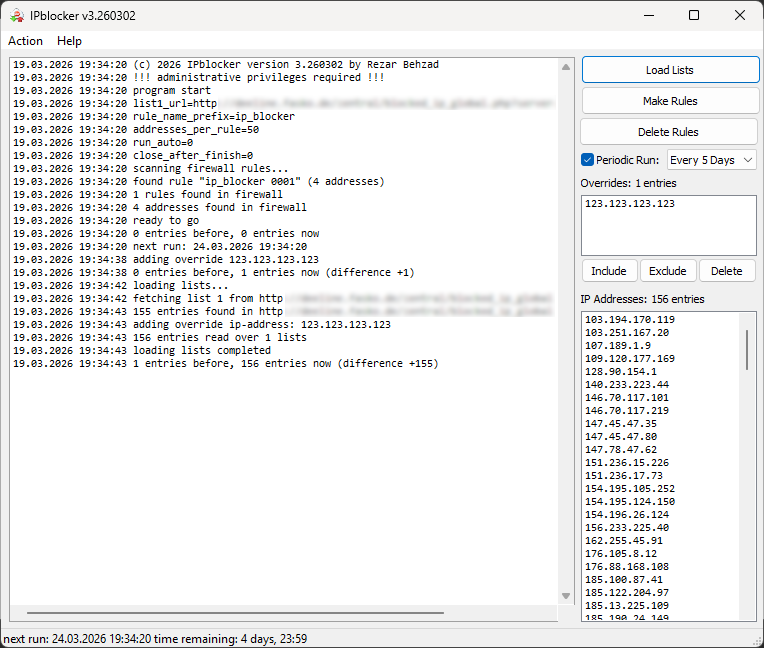
The central panel provides a real-time activity log, including:
- Application startup and version details
- Administrative privilege checks
- List loading and parsing operations
- Firewall rule scanning and updates
- Number of IP addresses processed and applied
- Override handling and rule differences
This panel acts as a diagnostic and monitoring console, allowing users to track all operations performed by the application.
Configuration
Upon first start, you need to define sources from where your IP-Lists originate. Click "Action" in the main menu, then select "Settings". This will open a dialog which allows you to specify up to five external or local sources from which IP blocklists will be retrieved. It also provides configuration for how firewall rules generated by the application are identified.
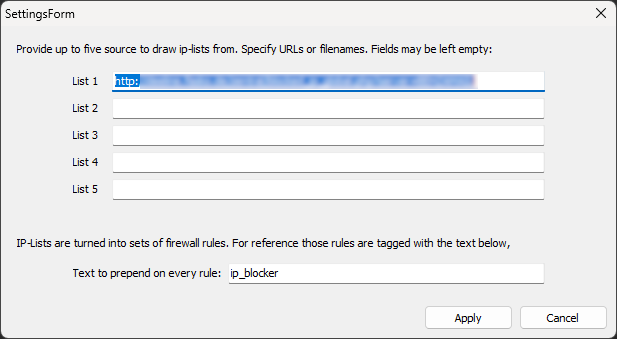
Those lists will be merged into one big blocklist. In addition to the IP-Addresses from those lists, you can define a number of "overrides" in the main-window:
- Include – Force an IP to be blocked
- Exclude – Prevent an IP from being blocked
- Delete – Remove override entry
Run - Once Or Scheduled
Once you have configured all lists, you can start automating your firewall settings. Use the buttons on the top-right corner:
- Load Lists – Retrieves IP blocklists from configured sources, applies overrides and merges them into one big list
- Make Rules – Applies the loaded IP addresses as firewall rules
- Delete Rules – Removes previously created firewall rules
If you enable "Periodic Run", both the "Load Lists" and "Make Rules" actions are performed in regular intervals, configured here to run every 5 days. You need to leave the application running for the schedule to work.
Download
Choose whether you prefer the installed or portable Version of this Software:
How to block a single IP address
This chapter will guide you through the process of blocking a single IP manually with IP Blocker. This can be a common use-case if the IP you want to lock out is not contained in your custom or public blocklists and makes use of the "Overrides" feature of the software:
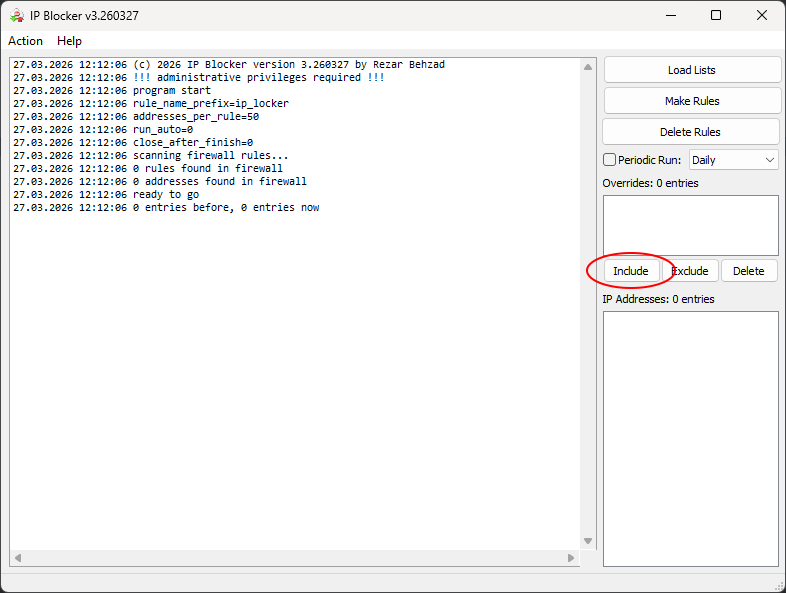
1. First of all, start "IP Blocker". One the main window, click "Include":
2. You will be prompted to enter an IP address. In this example, we take a made-up IP address of "123.123.123.123". Then click "OK". If the IP address you entered had an invalid format, an error is shown. If the IP address was entered, it will be added to the "Overrides" list.
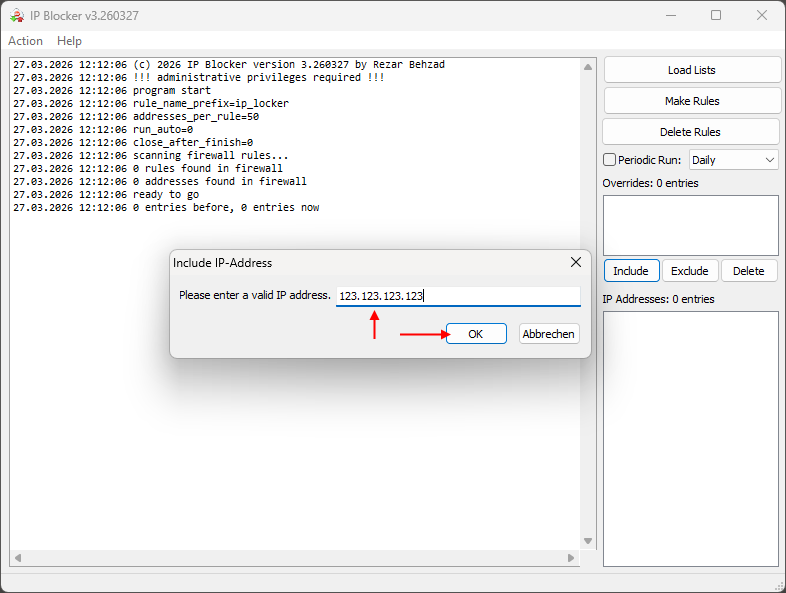
The address you just entered now appears in the "Overrides" list. Now click on "Make Rules" to have them added to your Firewall-Rules.
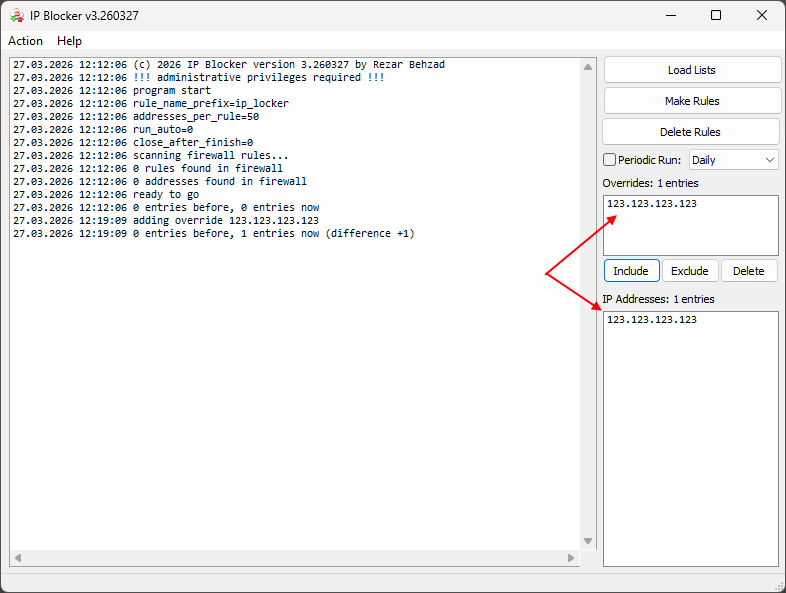
Entries in the "Overrides" list are saved to your harddisk.
Format of IP lists
IP address lists have to be provided as flat ASCII files. The list is parsed this way:
- Blocking rules can be IPV4 address with or without CIDR notation (10.1.2.3 or 10.1.2.3/24)
- Comments start with a hash-mark
- White-space is trimmed
- Empty lines are ignored
Example:
#########################
# comments are supported
#########################

10.1.1.11

10.1.1.12 # comment after ip-address
  10.1.1.13  # white space in front is allowed
109.3.1.4/24

# end of file
System Requirements
IP-Blocker does not have any meaningful or special system requirements. It does not even need an installation.
Hardware
- 4GB of RAM
- 50MB of free disk space
- Network Interface Card
Software
- Desktop: Windows XP SP2, Windows Vista, Windows 7, 8, 10, 11
- Server: Windows Server 2003 or higher.
Download
Choose whether you prefer the installed or portable Version of this Software: